You’re working on a complex 3D model when suddenly you notice strange artifacts after applying a Subdivision Surface modifier. The culprit? Those nearly identical vertices that should have merged during your boolean operation. Learning how to weld in Blender properly solves this common frustration and transforms your modeling workflow. Vertex welding—combining overlapping or near-identical points—is essential for clean topology whether you’re fixing imported geometry, connecting mesh parts, or preparing models for animation. This guide reveals every practical welding technique in Blender 3.0+, with specific methods for different scenarios so you’ll never struggle with messy vertices again.
Unlike older tutorials that mention “Remove Doubles,” modern Blender uses precise terminology like “Merge by Distance” to describe this critical operation. The good news? You have multiple approaches available—from non-destructive modifiers to quick manual fixes—each with ideal use cases. Master these techniques, and you’ll spend less time troubleshooting topology issues and more time creating professional-quality models with clean, watertight geometry.
Why Your Mesh Needs Proper Vertex Welding
Failed vertex welding creates the most common topology issues modelers face. When vertices occupy nearly identical positions without being merged, you’ll encounter:
- Visible seams in subdivided surfaces
- Shading artifacts where normals conflict
- Boolean operation failures due to ambiguous geometry
- Animation deformations from disconnected topology
The critical threshold? Vertices must be within 0.001-0.1 Blender units to require welding, depending on your model’s scale. Mechanical models demand tighter thresholds (0.001-0.01) while organic characters tolerate more leniency (0.01-0.1). Ignoring these near-duplicate vertices guarantees problems downstream—particularly when using Subdivision Surface modifiers that amplify minor topology flaws.
Weld Modifier: Non-Destructive Vertex Merging
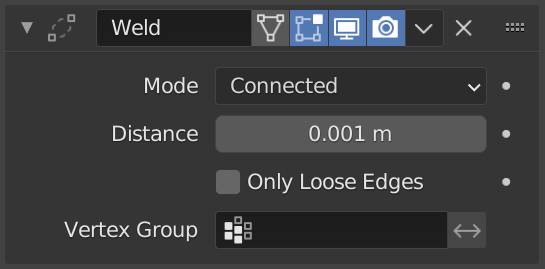
For modifier-based workflows, the Weld Modifier is your most powerful tool. Unlike permanent merge operations, this solution stays adjustable in your modifier stack—perfect for iterative modeling where you might need to revisit earlier decisions.
Essential Weld Modifier Settings
Distance Threshold: Start with 0.001 for precision work and increase only if needed. Too high (over 0.1) risks merging vertices that should stay separate.
Mode Selection:
– All Mode: Merges vertices across disconnected mesh parts (ideal for joining separate objects)
– Connected Mode: Only merges vertices within the same mesh component (safest for most workflows)
Vertex Group Control: Restrict welding to specific areas by assigning vertices to a group—critical when protecting important topology features during automatic cleanup.
When to Use the Weld Modifier
Place this modifier immediately after operations that create near-coincident vertices:
– After Boolean operations to clean up intersection points
– Following Mirror modifiers to merge seam vertices on the mirror axis
– Before Subdivision Surface to prevent shading artifacts
– With Array modifiers creating circular patterns to close geometry seams
This strategic placement ensures clean topology reaches your final modifiers without permanent mesh alterations.
Manual Vertex Merging: Precision Control

For targeted fixes where you control exactly which vertices merge and where the result lands, manual merging is indispensable.
Accessing Merge Options
- Enter Edit Mode (Tab)
- Select vertices in Vertex Selection mode
- Press M to open merge menu (not ALT+M in Blender 3.0+)
Critical Merge Options Explained
At First: Moves all selected vertices to the position of your first-selected vertex. Use when preserving specific vertex connections matters.
At Last: Opposite of “At First”—merges to your last-selected vertex position. Ideal when building geometry sequentially.
At Center: Creates a new vertex at the exact midpoint of all selected vertices. Perfect for symmetrical merges where no existing vertex should dominate.
At Cursor: Merges vertices to your 3D cursor position. Essential for precise placement independent of existing geometry.
Pro Tip: Selection order determines results with “At First/Last.” For complex selections, toggle viewport shading to wireframe (Z) to verify selection sequence before merging.
Auto Merge: Streamlined Workflow Integration
When you need vertices to merge automatically during modeling operations, Auto Merge saves constant manual intervention.
Enabling Auto Merge
- In Edit Mode, open the Active Tool panel (Options tab)
- Check Auto Merge Editing
- Set appropriate Distance Threshold (start with 0.001)
This feature automatically merges vertices whenever they move within your threshold during transforms. Move one vertex toward another, and they’ll snap together when close enough—no manual merge commands required.
Warning: Auto Merge stays active until disabled! Many modelers accidentally create topology issues because they forget it’s enabled. Disable it immediately after cleanup tasks.
Merge by Distance: One-Click Cleanup
For quick fixes on selected or entire meshes:
1. Enter Edit Mode
2. Select vertices (or skip for full mesh)
3. Press M > By Distance
4. Adjust threshold in operator panel
This command replaces the old “Remove Doubles” function with more accurate naming. Set threshold conservatively first—increase only if vertices that should merge remain separate.
Fixing Common Welding Failures
Even experienced modelers encounter welding issues. Here’s how to solve them:
Vertices Refusing to Merge
- Increase distance threshold incrementally (0.001 → 0.01 → 0.1)
- Verify vertex selection—only selected vertices merge in manual operations
- Check modifier stack order—Weld Modifier must come before Subdivision Surface
Unintended Merging During Modeling
- Disable Auto Merge when not actively cleaning geometry
- Reduce distance threshold for precision work
- Use vertex groups to restrict Weld Modifier to specific areas
Visual Artifacts After Merging
- Check for degenerate faces created by merging (faces collapsed to lines)
- Add Edge Split modifier before Subdivision Surface if hard edges are needed
- Recalculate normals (Shift+N in Edit Mode) after major topology changes
Optimal Welding Workflow Strategies
Modifier Stack Best Practices
Boolean Modifier → Weld Modifier → Subdivision Surface

Mirror Modifier → Weld Modifier → Weighted Normal

Array Modifier (circular) → Weld Modifier → Bevel
Always position the Weld Modifier between geometry-generating operations and smoothing modifiers.
Method Selection Decision Tree
- Need non-destructive workflow? → Use Weld Modifier
- Cleaning up entire imported mesh? → Merge by Distance
- Manually positioning vertices? → Enable Auto Merge + vertex snapping
- Precise control over merge result? → Manual merge options (M key)
Precision Welding Shortcut
Combine snapping with Auto Merge for surgical accuracy:
1. Enable Vertex Snapping (magnet icon)
2. Set snap target to Closest
3. Enable Auto Merge
4. Move vertices—they’ll merge automatically when snapped
This creates visual confirmation of weld points while maintaining workflow speed.
Advanced Welding Techniques
Custom Keyboard Shortcuts
Remap welding functions to more accessible keys:
– ALT+W for Weld Modifier toggle
– SHIFT+W for “At Last” merge
– CTRL+W for Merge by Distance
Access via Edit > Preferences > Keymap to create personalized shortcuts matching your workflow rhythm.
Community Addons for Visual Welding
While Blender lacks Cinema 4D’s visual weld tool by default, these free addons restore that functionality:
– Mesh: Weld Everything (built-in addon)
– Vertex Tools (community addon)
– HardOps/MeshMachine (for hard-surface modelers)
These provide Maya-style click-and-drag welding with visual feedback—ideal for users transitioning from other 3D packages.
Key Takeaways for Flawless Welding
Mastering how to weld in Blender separates amateur models from professional-quality assets. Remember these core principles:
- Start conservative with distance thresholds (0.001) and increase only as needed
- Always weld before subdividing—never after
- Disable Auto Merge when not actively using it
- Use Weld Modifier in modifier stacks for non-destructive workflows
- Verify results in wireframe mode (Z key) where merged vertices are obvious
The most efficient modelers don’t just know how to weld in Blender—they understand when to use each technique. Apply these methods strategically, and you’ll eliminate topology issues before they become time-consuming problems. Whether you’re fixing imported CAD data, cleaning up boolean operations, or preparing characters for animation, proper vertex welding ensures your models maintain clean, production-ready topology at every stage of development.
Leave a Reply